ClipLM
Your intelligent clipboard workspace

Searchable clipboard history, reusable AI prompts, translation, favorites, and notes in one focused desktop tool.

Available on macOS, Windows and Linux

Local-first · No account required · Bring your own AI provider

What each workspace does.

ClipLM searchable clipboard history
01 · Capture

Search beyond the preview.

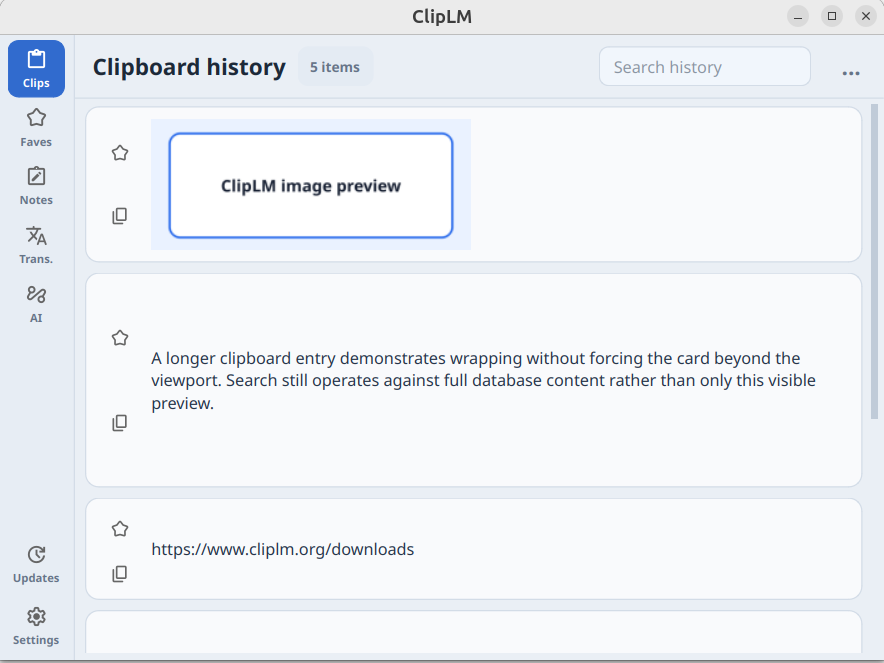
Clipboard keeps copied text and images in local history. Search queries the stored content, so results are not limited to the shortened text shown on each card.

ClipLM searchable clipboard history
  • HistoryNewest clips appear first with text or image previews.
  • ActionsCopy, paste, or save an item to Favorites directly from its card.
  • CleanupClear the complete history from the overflow menu after confirmation.
Keyboard shortcuts
COpen Clipboard tab /Focus search EscLeave search
02 · Keep

Keep the clips worth reusing.

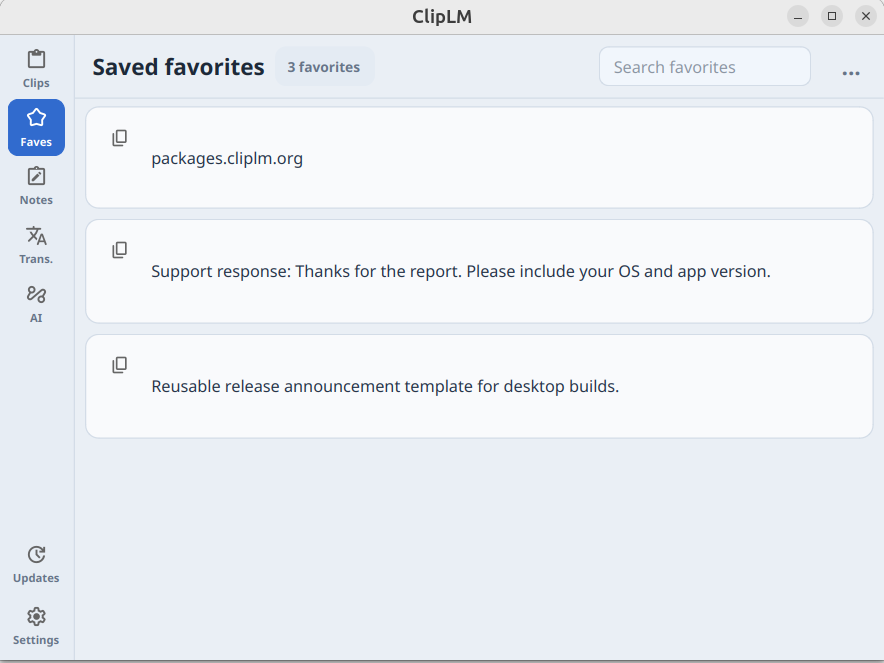
Favorites separates reusable content from temporary clipboard history. Saved items remain searchable and retain direct copy and paste controls.

ClipLM favorites library
  • SavePromote any clipboard card into the persistent Favorites list.
  • ReuseCopy an item or place it in the clipboard and trigger paste in one action.
  • RemoveEnable Delete from the overflow menu to expose card checkboxes.
Keyboard shortcuts
FOpen Favorites tab /Focus search EscLeave search
03 · Shape

Give useful text a permanent place.

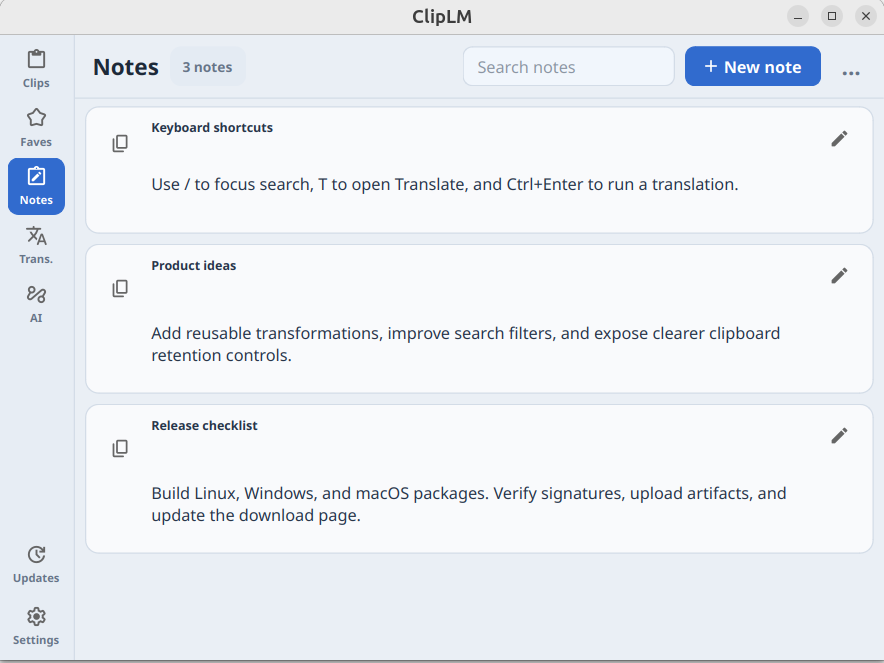
Notes stores a title and body as a durable local entry. Search works on stored note content rather than only the preview visible in the list.

ClipLM notes workspace
  • CreateAdd a titled note from the page header and validate both fields before saving.
  • EditOpen an existing note for editing, or copy and paste its content from the card.
  • RemoveUse overflow Delete mode to show removal controls on every note.
Keyboard shortcuts
NOpen Notes tab /Focus search EscLeave search
04 · Translate

Translate without switching context.

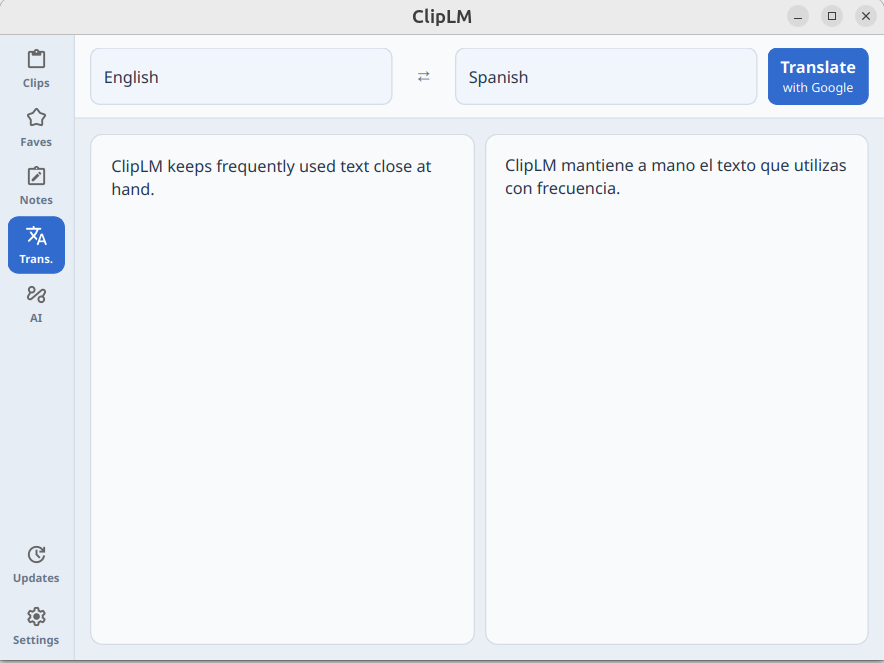
Translate provides separate source and destination language selectors and shows the active provider directly on the Translate button.

ClipLM translation workspace
  • LanguagesUse automatic source detection or reverse explicit source and destination selections.
  • ProviderChoose Google Translate or the LLM endpoint configured in Settings.
  • Long textSource and destination scroll positions stay synchronized by relative progress.
Keyboard shortcuts
TOpen Translate tab TTranslate when tab is open
05 · Transform

Run your prompts on copied content.

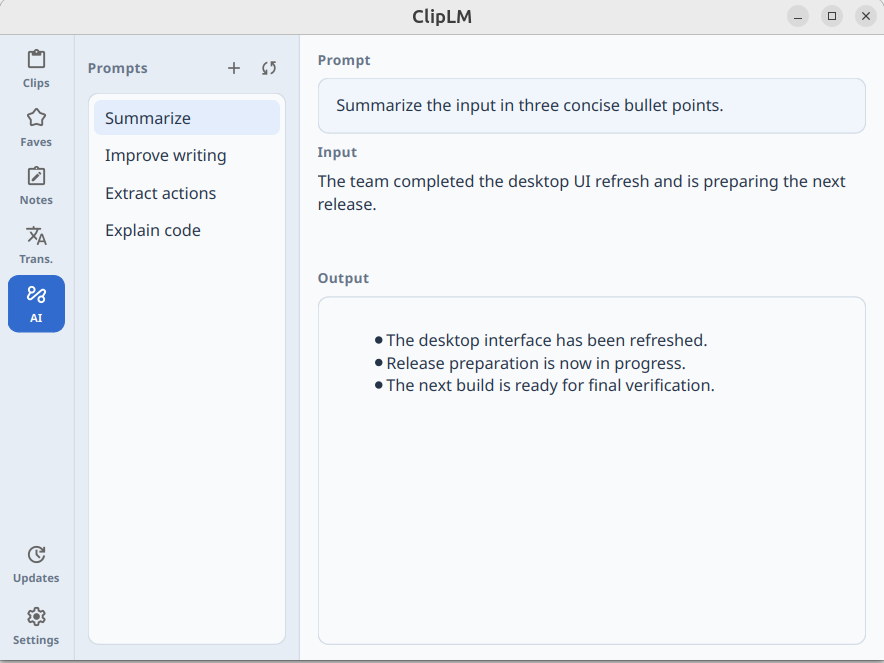
AI runs a selected reusable prompt against copied text or image input through the OpenAI-compatible endpoint configured in Settings.

ClipLM reusable AI prompt workflow
  • RunClick a prompt row to select it and execute it against the current copied input.
  • ManageAdd or reload prompts; use the row menu to edit or delete them. Duplicate names are rejected.
  • OutputHover over the result to reveal Copy and Paste actions.
Keyboard shortcuts
AOpen AI tab
06 · Configure

Make the workflow fit your setup.

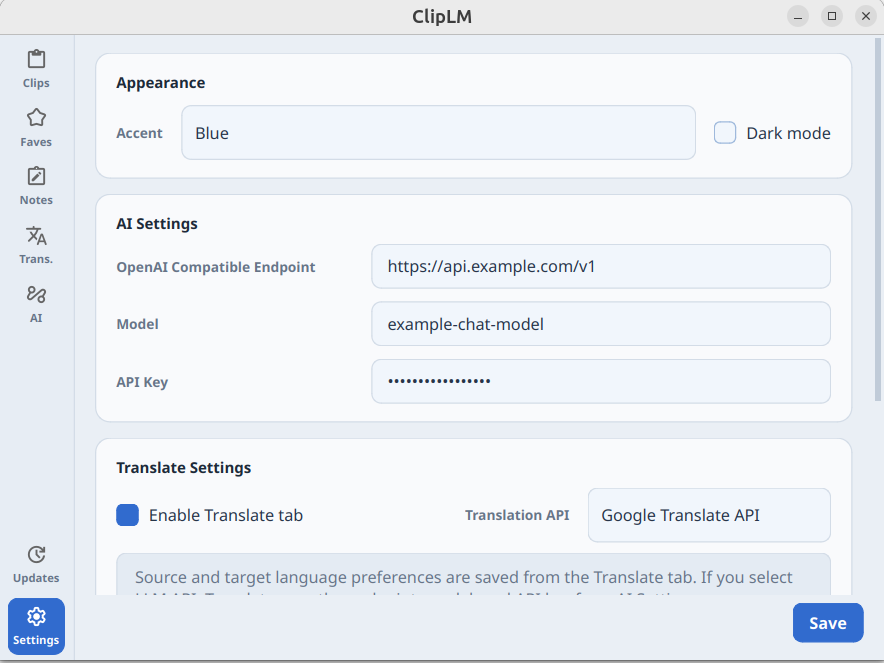
Settings keeps appearance, AI, translation, and storage configuration in separate compact sections and saves them in the user configuration directory.

ClipLM appearance and provider settings
  • AppearanceSelect an accent palette and switch between light and dark modes.
  • ServicesSet the OpenAI-compatible endpoint, model, API key, translation provider, and tab visibility.
  • FilesView and open the config, data, and cache directories from one place.
Keyboard shortcuts
SOpen Settings tab
deb

Debian / Ubuntu

Use the signed APT repository for managed updates, or download a standalone package.

v0.1.0 · Debian 12+ · Ubuntu 22.04+ · x86_64
Signed APT repository
sudo apt update && sudo apt install -y curl gnupg
curl -fsSL https://packages.cliplm.org/cliplm-archive-key.asc | gpg --dearmor | sudo tee /usr/share/keyrings/cliplm-archive-keyring.gpg >/dev/null
echo "deb [signed-by=/usr/share/keyrings/cliplm-archive-keyring.gpg] https://packages.cliplm.org/apt stable main" | sudo tee /etc/apt/sources.list.d/cliplm.list
sudo apt update
sudo apt install cliplm